SE - AI chatbot docs
User manual, architecture, and installation reference for SE - AI chatbot
Jobs
/admin/jobs
The operational view of crawling on this instance: every schedule set up, and every job (a triggered crawl run) ever executed, most recent first. Use it to check whether a crawl is running, see how it went, cancel something stuck, or manage schedules.
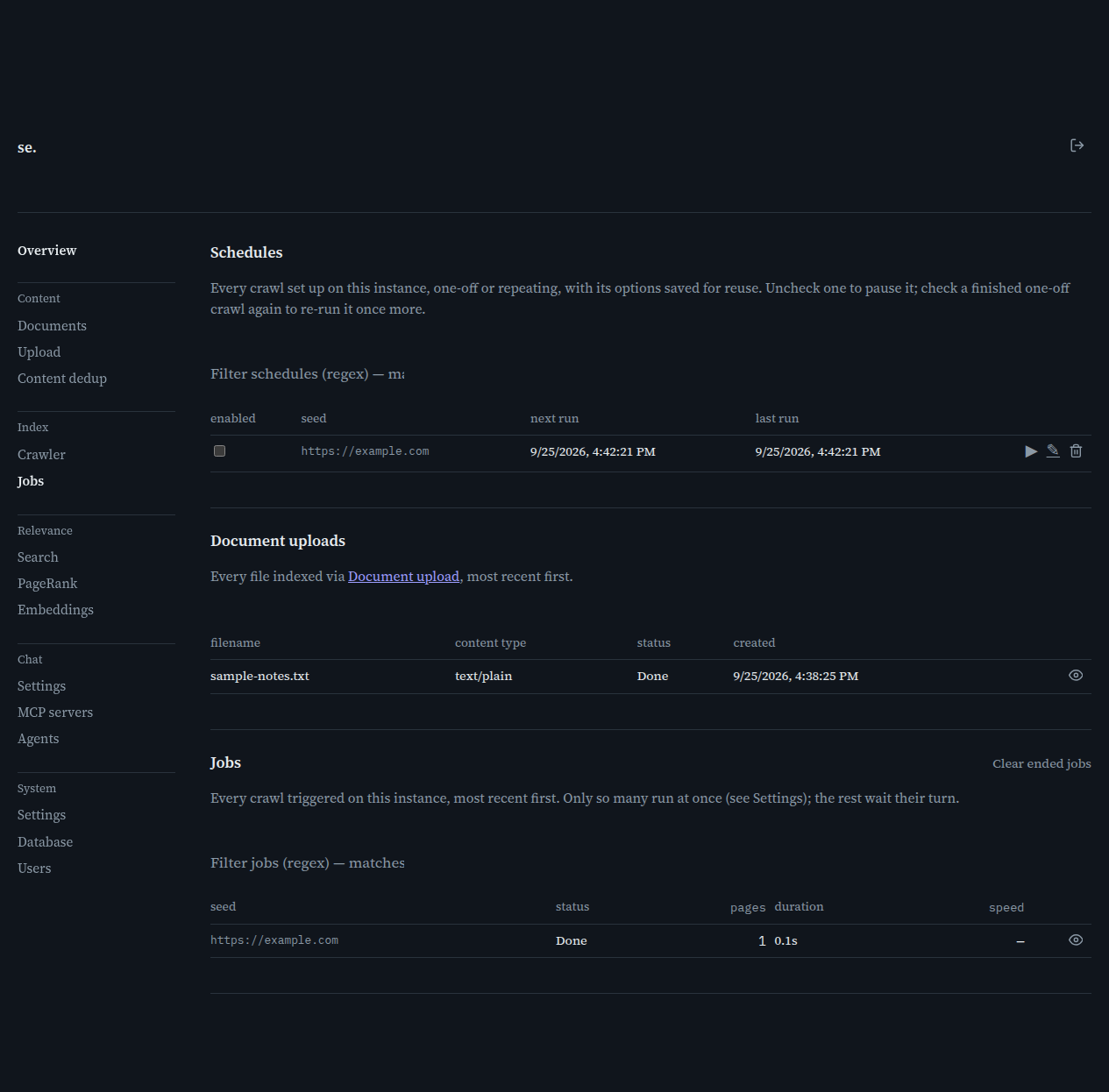
Schedules table
Lists every crawl set up on this instance, one-off or repeating, with options saved for reuse. The first column is an Enabled checkbox to pause/resume directly — a dedicated toggle endpoint that never reschedules the next run, unlike toggling Enabled on schedule-detail’s own form and clicking Save, which reschedules it the same as any other field edit there — followed by seed, next run time, and last run time (repeat interval and link scope stay on schedule-detail, not repeated here). Per-row icons: Run now (▶), Edit (✎, opens schedule-detail), Delete (trash).
Jobs table
Lists every crawl actually triggered — one-off runs and every fire of a repeating schedule — most recent first. Columns show seed, status (Queued, Running, Done, Failed, Cancelled), pages crawled so far, duration, and a live pages/second reading from consecutive polls (shows “—” until observed twice). Only a limited number of jobs run at once — see the concurrency setting on Settings — so a job can sit Queued while others finish.
Viewing and cancelling a job
Click the magnifying-glass icon to load a job’s detail: the exact options it ran with (seed URLs, max pages, robots handling, link scope, allowed/blocked domains, renderer, sitemap/prioritization flags, fetch overrides, and whether a cookie or Basic auth was set — never the credential value), plus a per-page table of every attempted URL, outcome, title, content length, links found, fetch duration, timestamp. A Cancel action (the same trash icon, labeled “Cancel” on hover) appears next to View only while Queued or Running; cancelling stops the job and leaves already-indexed pages in place.
Filtering and clearing ended jobs
Both tables get a regex filter box once they have a row — Schedules filters by seed, Jobs by seed or status text (e.g. “failed”). The job-detail page has its own filter (URL, status, title, or error detail), pagination past 50 attempted pages, and click-to-sort columns. “Clear ended jobs” removes every non-Queued/Running job (Done, Failed, Cancelled) in one action, reporting how many it removed.
Document uploads table
A second table — placed between Schedules and Jobs on the page — lists every job from Document upload, most recent first — filename, content type, status, and created-at. It’s a separate table from Jobs rather than merged into it: a Document job is always a single file with none of that table’s crawl-specific columns (seed, pages crawled, speed), so forcing the two shapes together would mean mostly-empty cells either way. Its View action opens the same job detail page Document upload’s own list links to.
One-off Crawl vs. recurring schedule
The Crawl page’s form always creates the same kind of record regardless of interval — the difference shows up only here. A one-off crawl (Interval 0) creates an already-due schedule, runs once, and shows up only as a Jobs row, never in Schedules. A repeating crawl shows up in both: as a Schedules row you manage, and, each time it fires, a fresh Jobs row you inspect after. The Crawl page doesn’t navigate you here automatically — after submitting, it shows an inline status message (“…see it on the Jobs page”) and leaves you there; you switch to this page yourself. Once here, the Jobs table’s own auto-refresh (see below) picks up the new job as soon as crawl-server’s scheduler next ticks, typically within seconds — no separate redirect-triggered polling window is involved.
Worth knowing:
- The Jobs table auto-refreshes every 1.5s whenever a job is Queued or Running, and stops once nothing is active — leave this page open during a large crawl to watch it live.
- A job’s page-list defaults to sorting by fetched time, most recent first — most useful while a crawl is in progress or just finished.
← Schedule detail · ↑ Manual home · Search debug →