SE - AI chatbot docs
User manual, architecture, and installation reference for SE - AI chatbot
Documents
/admin/documents
Where you find indexed pages and their domains, and where the crawl vocabulary lives. Use it to check whether a page or domain made it into the index, spot-check what got crawled, and jump into a domain’s full page list or a vocabulary term’s detail.
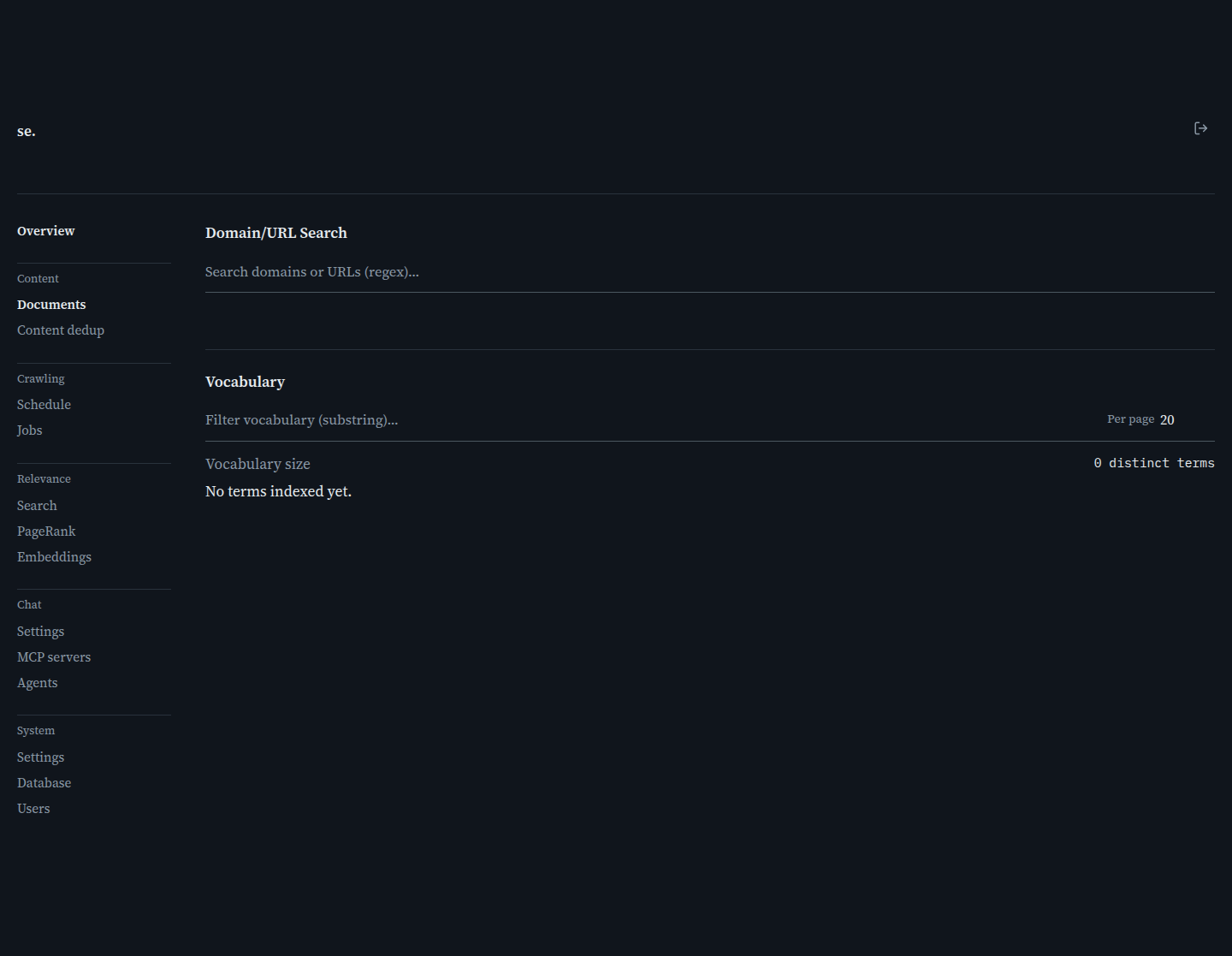
Domain/URL search
Results update as you type, after a 200ms pause. The text is a regular expression, not a plain substring — ^shop\. matches hosts starting with “shop.”, \.de$ matches every .de domain — and matching is case-insensitive. Leave the box empty and nothing shows; a large corpus dumped by default would be useless as a first screen.
How the search works under the hood
The first search fetches up to 1000 domains and 2000 documents and caches them in memory; every keystroke after that just re-filters client-side, so results feel instant. Very large corpora are capped at that sample — an obscure domain/document beyond it might not show here even though it’s genuinely indexed. Use the per-domain page for a complete, uncapped view once you’ve found it.
Domain results
Each match shows the host and how many pages are indexed under it. Click a row to open that domain’s page (/admin/documents/{host}), which lists up to 1000 of its pages — far more complete than this search’s shared up-to-2000-document sample across the whole corpus.
Document results
Below the domain list, matching pages show as a table of URL, title, and host — matched against all three, so a company name finds pages whose title mentions it even without a URL match. Clicking a URL opens the live page; there’s no delete here — that’s on the domain detail page, which shows up to 1000 of the domain’s pages directly rather than pulling from this search’s capped sample.
Vocabulary
Lists every distinct term the index has tokenized out of crawled content, with a document frequency (pages containing it) and a total frequency (occurrences across the corpus). Unlike domain/URL search, this list is server-paged and server-sorted, so it stays accurate and fast at any vocabulary size — nothing here is capped to an in-memory sample.
Filtering, sorting, and paging vocabulary
The filter box is a plain substring match (not regex), server-side against the lowercased term, so mixed-case searches still work. Click a column header to sort — clicking the active column flips direction; term starts ascending, the two frequency columns start descending (most frequent first). “Per page” sets row count; Previous/Next page through the filtered, sorted set. The summary line shows the true corpus-wide vocabulary size, and, while filtering, how many terms matched.
Why vocabulary matters: fuzzy correction
This is the same term list the public search’s typo correction draws from: a zero-hit query term gets fuzzy-matched against this vocabulary (within a bounded edit distance) and quietly substituted for scoring, shown transparently in results rather than silently rewriting what the user typed. A term missing here is exactly why a related misspelled query wouldn’t get corrected to it.
Opening a term’s detail
Click any term to open its detail page, showing exactly which documents contain it and how strongly. Use this to sanity-check a term came from real content, not boilerplate or a crawl artifact, before trusting how it influences ranking or fuzzy correction.
Worth knowing:
- Domain/URL search sees only a capped in-memory sample (1000 domains, 2000 documents) — open a domain’s detail page for a much larger, up-to-1000-page view of that domain.
- The domain/URL box takes a regex; the vocabulary box takes a plain substring, so regex syntax there is searched literally.
← Your files · ↑ Manual home · Document upload →