SE - AI chatbot docs
User manual, architecture, and installation reference for SE - AI chatbot
MCP Servers
/admin/mcp-servers
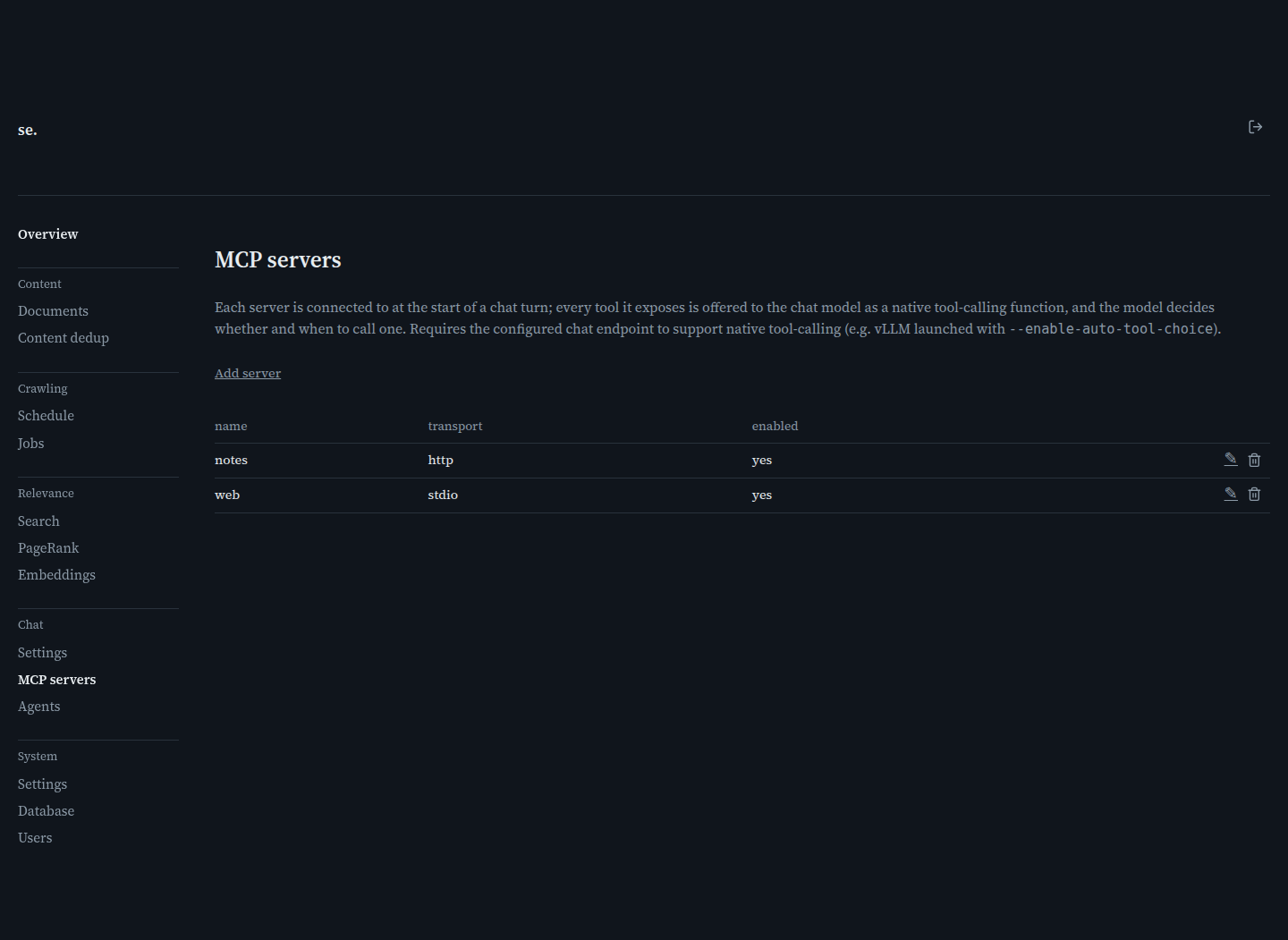
Lists every MCP server connection you’ve configured — the tools your chat model can reach beyond its own training, from web search to running code in a sandbox. Add a new server here, or open an existing one to edit or delete.
What an MCP server is here
MCP (Model Context Protocol) is a standard way for a model to call external tools with structured arguments. Each row here is a CONNECTION to one MCP server, not a single tool — a server can expose several at once, and the model discovers and calls them natively, deciding on its own whether a call is warranted. This replaced an older mechanism (ChatHook) where each row was a single script-backed tool with an admin-typed description; now the name and description come live from the server itself, so they can never drift from what the tool actually does.
Requirements for tool-calling to work at all
Configuring servers here does nothing unless the chat endpoint supports native tool-calling. For self-hosted vLLM that means launched with –enable-auto-tool-choice and a matching –tool-call-parser. Without it, the model never sees any tools regardless of how many servers are enabled — no error, the conversation just proceeds without them.
The server list
Each row shows the server’s name, transport (stdio or http), and enabled state, plus Edit (✎) and Delete (trash) actions. An empty list shows a prompt to click “Add server” rather than a bare table. Deleting asks for confirmation and warns its tools stop being offered immediately — no undo, so uncheck “Enabled” instead if you’re not sure.
The five built-in servers
Five first-party stdio servers, each a separate binary, you can point Command at directly: mcp-datetime exposes a single get_datetime tool, called only when the model actually needs the current time, replacing an older mechanism that stamped every prompt with a timestamp regardless. mcp-web exposes web_search (proxies to self-hosted SearXNG) and web_fetch (fetches a URL’s text, guarded against SSRF) — see “Gated by web search” on the detail page for its interaction with the chat UI’s Web toggle. mcp-files exposes list_files/read_file/read_file_base64/write_file, letting the model read a user’s uploaded files (text or base64) and hand back new ones; it holds no database credential, only a short-lived per-turn token scoped to that user’s files. mcp-sandbox exposes run_python and run_go in a locked-down, disposable Docker container (no network, resource limits) — every flag governing it is admin-configured on Arguments, never model-influenced; with -network set, the model can also request pip/Go module installs before its code runs. Independent of -network, the model can pass file_ids (from list_files) to make any of the user’s own files readable inside the sandbox under their real filenames — the same authenticated per-turn token mcp-files uses, not a network fetch, so this works whether or not -network is set. This is how a PDF, a .docx, an image, or any other file type actually gets processed: the model writes ordinary code against a real file on disk (pdfplumber, python-docx, Pillow, whatever the task calls for) rather than this server hand-building an extractor per format. mcp-vision exposes vision_similarity (embeds an image and vector-searches this instance’s own index with it) and vision_caption (describes an image, or answers a question about it, via a configured vision-language endpoint) — both independently enabled/configured on Chat Settings’s Vision section, not here. Each tool takes either an attached file (via the same per-turn file token mcp-files uses, so still no database credential held) or a plain image URL the user pasted into chat — the latter is fetched directly by mcp-vision itself, guarded against SSRF the same way mcp-web’s web_fetch is.
Adding a server you host yourself
Nothing restricts you to the five built-ins — any process speaking MCP over stdio, or any remote endpoint speaking Streamable HTTP, can be added the same way. Click “Add server” and fill in the detail form; see mcp-server-detail for what each field means.
If the page says MCP servers aren’t configured
This feature depends on an MCP-server store being wired into the admin server; if it isn’t, every MCP-servers endpoint returns 503 and the list page shows “not configured” instead of a table — same degradation pattern as Agents and other optional admin features. It’s a deployment/config state, not something clicking around this page fixes.
Worth knowing:
- If a server’s tools never show up in a chat, check in order: is the chat endpoint launched with tool-calling enabled, is Enabled on, and — if gated — is the Web toggle on for that turn.