SE - AI chatbot docs
User manual, architecture, and installation reference for SE - AI chatbot
Domain detail
/admin/documents/{host}
A view of every page indexed under one domain, up to 1000 — for a domain that large, this is the same practical ceiling as the Documents search, just scoped to one host — reached by clicking a domain from the Documents search. Review a site’s crawl results in detail, spot pages worth re-crawling or removing, and see a page’s edit history across re-crawls.
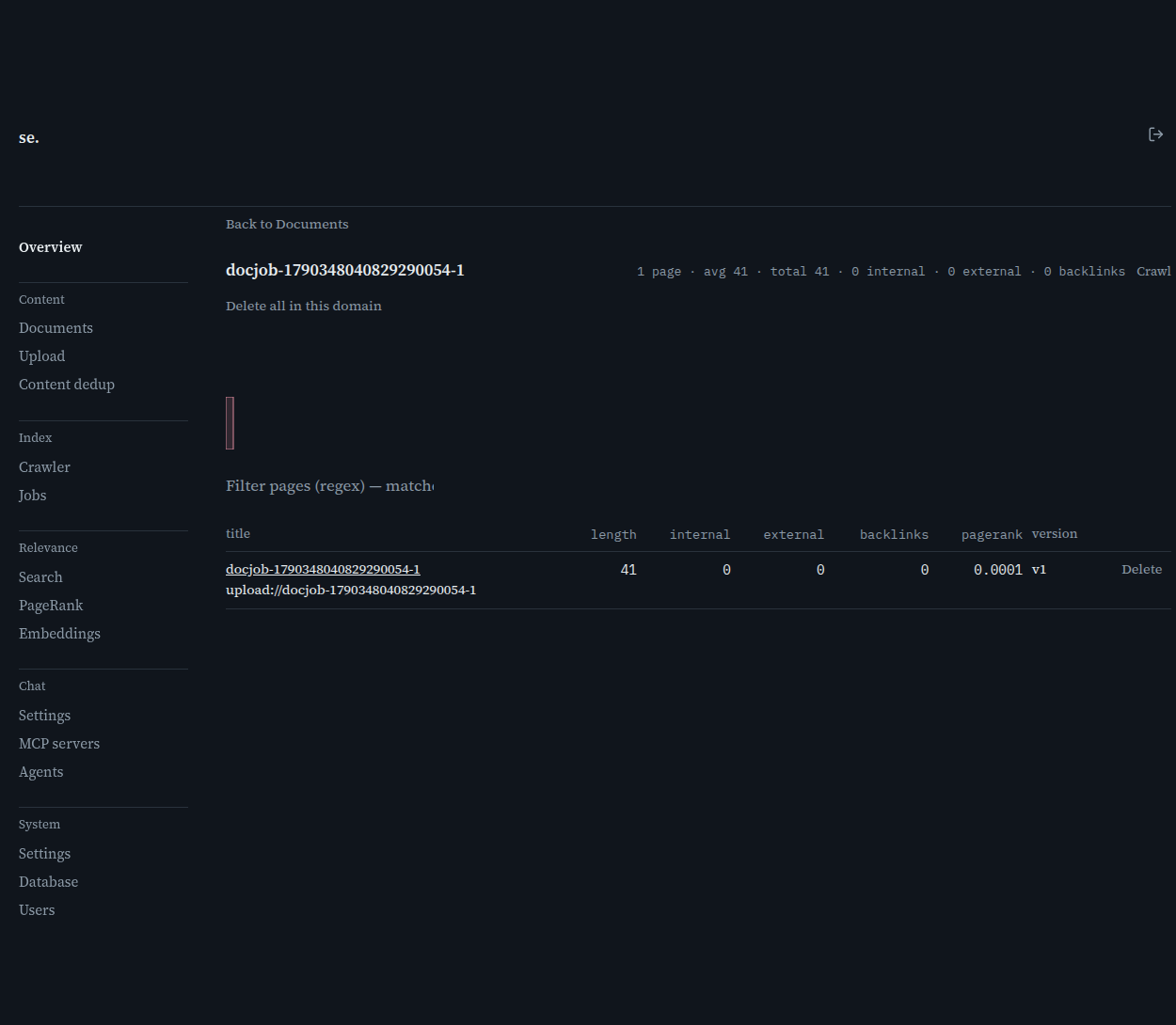
Header and summary
The host is read from the URL (/admin/documents/{host}), so this one static page works for any domain. The summary line gives page count, average and total indexed length (tokens), and totals for internal links, external links, and backlinks — a quick read on how substantial and well-interlinked the crawl is. A “Crawl” link jumps to the Crawl page pre-filled with this domain’s origin URL, so re-crawling is one click away.
The length chart
A bar chart above the table shows each page’s indexed length in tokens, tallest relative to the domain’s longest page; hover for title and exact count. A fast way to spot outliers — a suspiciously short page (a near-empty template, a paywall stub) or one that dwarfs the rest (maybe a sitemap dump that shouldn’t weight like a normal article).
Filtering the page table
The filter box matches a regex, case-insensitively, against title or URL — the same convention as the admin’s other list filters. An invalid pattern is reported inline rather than thrown; fix it and the table updates. Purely client-side over already-loaded pages, so it’s instant with no extra requests.
The page table’s columns
Each row is one page: title (linking to the live URL) with the URL underneath, indexed length, internal links (to the same domain), external links (to other domains), backlinks (other indexed pages linking here), and PageRank — the link-authority score fed into ranking, tunable via the Tuning page’s PageRank weight. Hovering a links column explains it in a tooltip.
Version history
A page re-crawled with materially different content shows a version number greater than v1; click it to open the History panel, listing every prior version with its title, indexed length, and crawl timestamp. A page still on v1 has only ever been crawled once, so the button only appears once there’s real history.
Deleting a single page
The row’s Delete button asks for confirmation, then removes that page from the index immediately — a synchronous single-document delete, unrelated to the bulk delete-all flow below.
Delete all in this domain
Removes every page in the domain in one action. After confirming, the server queues deletion in a background goroutine detached from your request and responds immediately — the removal survives navigating away or closing the tab. While you stay, it polls every 1.5s and updates the status/table live. If progress stalls (the remaining count holds steady across several polls — some deletions failed and were logged server-side), it reports how many were removed vs. stuck rather than polling forever, and re-enables the button.
Worth knowing:
- Deleting all pages in a domain is irreversible and starts immediately on confirm — only re-crawling from scratch brings them back.
- If “Delete all” reports stuck pages, check the server log for the failed document IDs rather than assuming the whole domain is gone.
- Like Documents search, this page is capped at 1000 pages per domain; an unusually large domain may have more indexed than shown here.
← Document upload · ↑ Manual home · Vocabulary term detail →