SE - AI chatbot docs
User manual, architecture, and installation reference for SE - AI chatbot
Agents
/admin/agents
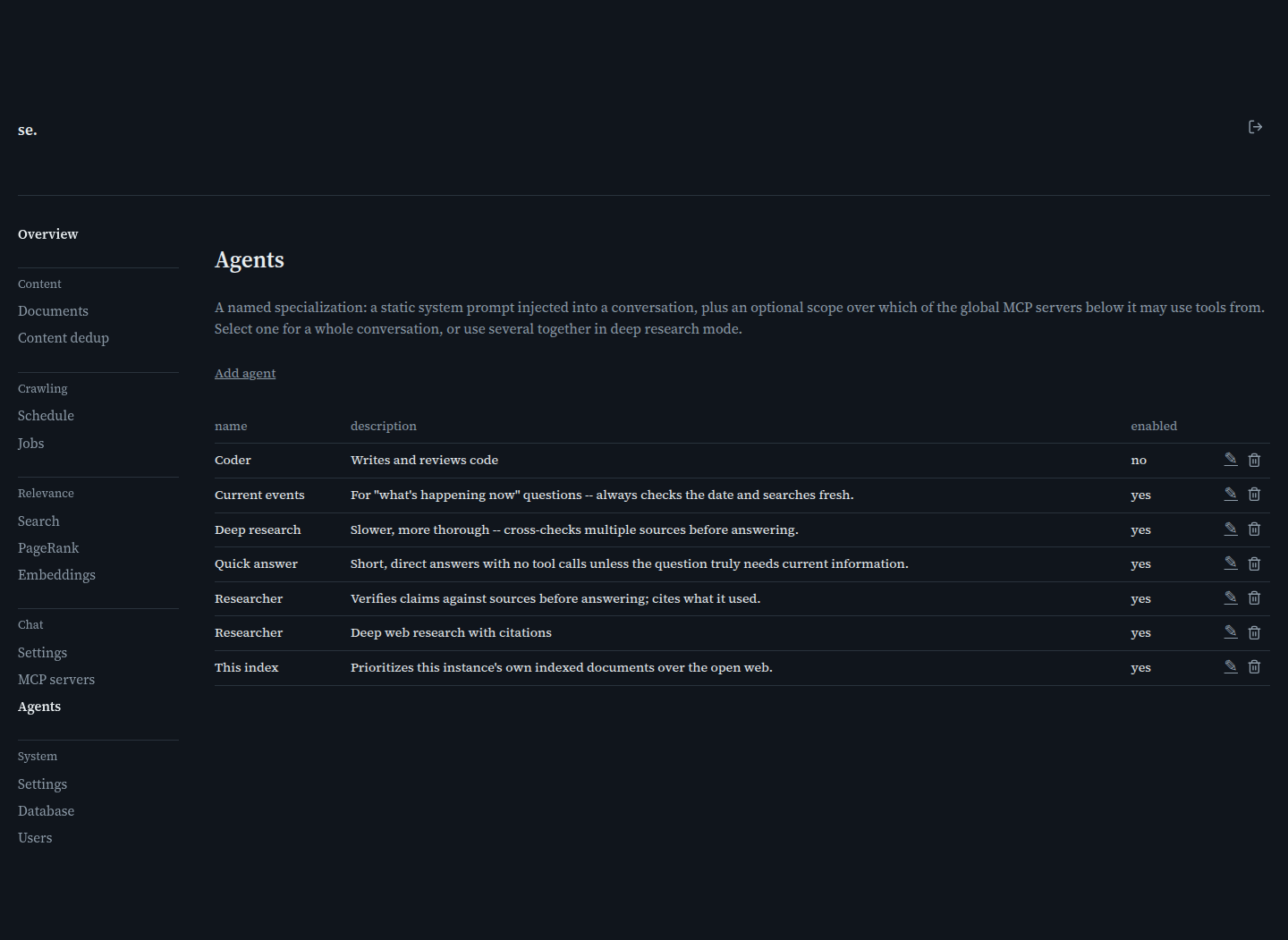
Under Chat -> Agents, this list shows every agent you’ve defined and lets you add or edit one.
What an agent is
An agent is a named specialization: a fixed system prompt bundled with a scoped subset of the MCP servers on the MCP servers page. Instead of writing one persona into the endpoint’s global system prompt (Chat -> Settings) for every conversation, define a handful of agents – a fact-checker, a code reviewer, a terse summarizer – each with its own instructions and tools, and let whoever’s chatting pick the one that fits. An agent never changes the underlying model or endpoint; it only adds a leading instruction and narrows tool access for its active turns.
The list and its columns
Each row shows the agent’s name, description, and whether it’s enabled – exactly what a person picking from the chat page’s dropdown sees, so keep the description short and about purpose, not build details; it’s never sent to the model. Click Edit (✎) to open the detail page, or Delete (trash) to remove it after a confirmation – there’s no undo, so a mistaken delete means re-entering the system prompt from scratch.
Adding an agent
Click “Add agent” for a blank detail page (/admin/agents/new – the same form as editing, empty fields, “Enabled” checked by default). Nothing saves until you fill in a name and submit – see the agent-detail page for what each field does.
Enabled vs. disabled
Disabling removes an agent from the chat page’s picker (GET /agents returns only enabled agents) without deleting its configuration. Use this to retire an agent temporarily while tuning its prompt, or to line it up as a default-agent candidate (Chat -> Settings allows picking a disabled agent as default) before rolling it out.
If the page says agents aren’t configured
The agents feature depends on an agent store being wired into the admin server; if it isn’t, every agents endpoint returns 503 and the list page shows “not configured” instead of a table – same degradation pattern as MCP servers and other optional admin features. It’s a deployment/config state, not something clicking around this page fixes.
Suggested global agents
A fresh install seeds six ready-to-use starter agents the first time the agents table is completely empty – delete one and it stays deleted; delete all six and the next restart re-seeds them, since that looks identical to a genuinely fresh database. Each starts with an empty MCP-server scope deliberately: a real server’s row ID is deployment-specific data nothing can safely guess. To let one use web search (or sandbox/files), open it and check the box for whatever row this deployment’s server is configured as.
| Agent | Purpose | Needs an MCP server scoped to work as intended? |
|---|---|---|
| Researcher | Fact-checking generalist – searches for and cites a primary source before answering anything it isn’t certain of. | Yes (web search/fetch) |
| Quick answer | Short, direct answers; only searches when the question genuinely needs current information. A good default-agent pick. | No (works fine with zero tools; searches opportunistically if scoped) |
| This index | Prioritizes this deployment’s own indexed documents over the open web. | Yes (web search/fetch) |
| Current events | For “what’s happening now” questions – calls get_datetime first, then always searches rather than trusting training knowledge. | Yes (web search/fetch, plus the get_datetime MCP server if configured) |
| Deep research | Slower and more thorough – fetches and reads the top few results before answering, not just search snippets. | Yes (web search/fetch) |
| Image analyst | Makes use of an attached image, or an image URL pasted in chat – finds visually related pages in this index, or describes what it shows/answers a question about it. | Yes (the mcp-vision MCP server; either or both of its capabilities also need enabling on Chat Settings’s Vision section) |
Worth knowing:
- An empty MCP-server scope isn’t “unrestricted” – it gets no global tools at all. See agent-detail’s MCP-servers section.
- Deleting an agent set as a chat endpoint’s default doesn’t clear that setting – default_agent_id just stops matching, and turns fall back to no specialization.
- Image analyst’s two tools (vision_similarity/vision_caption) each independently report themselves unavailable if their own Vision setting isn’t enabled/configured – scoping the mcp-vision server alone isn’t enough on its own.